

A little support. More independence.

Stay independent.
Stay connected.

Fall detection, inactivity alerts, emergency SOS.

For the life you want to keep living. LifeGuardian helps your Android phone notice possible trouble—and reach the person you trust.

Android · No LifeGuardian account · Premium required for protection

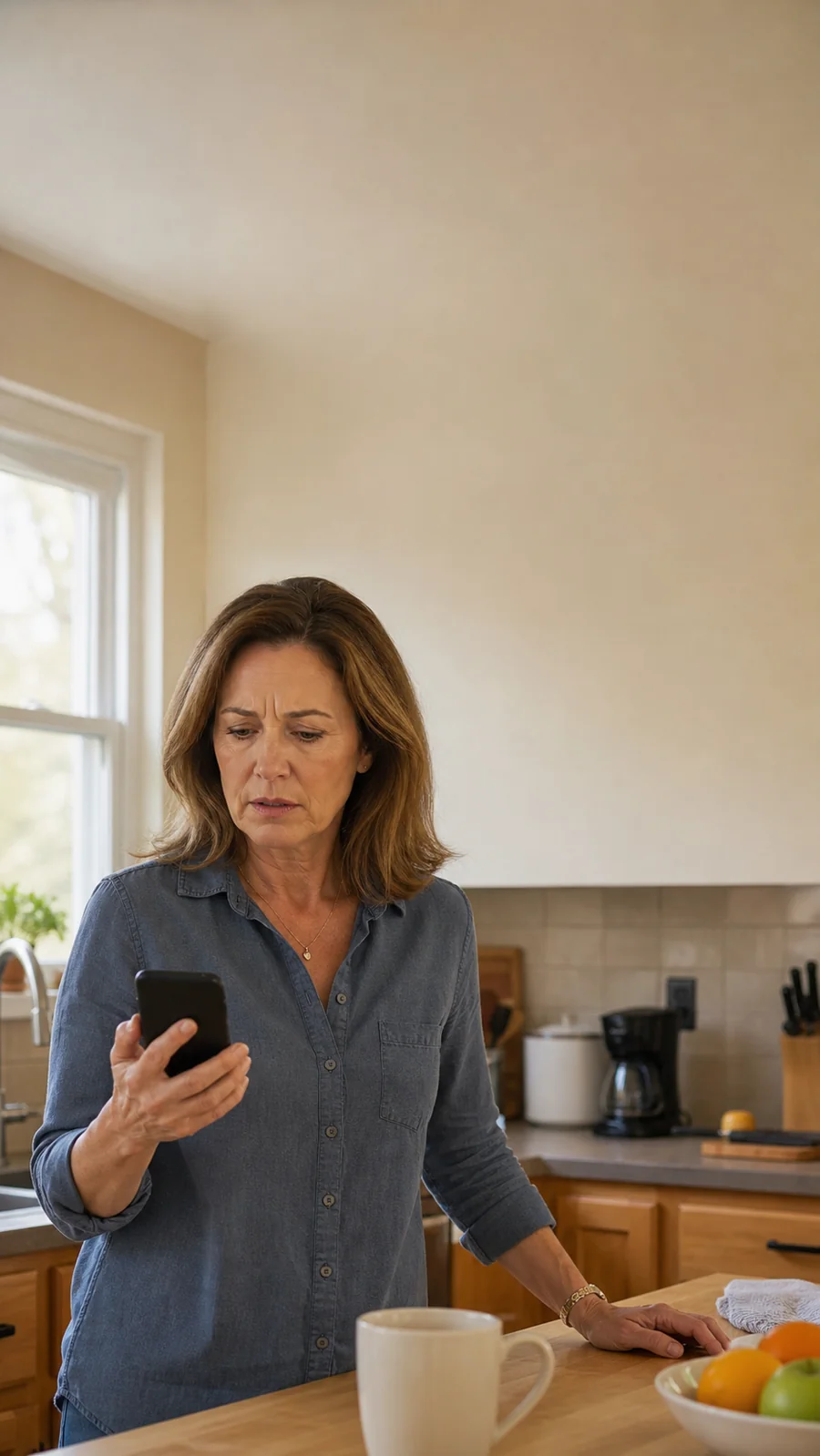
An AI-illustrated everyday kitchen scene, with a woman checking her phone
More room for everyday life.AI-illustrated scene. Not a customer photograph.

Life at your pace.

On-device monitoringA contact you chooseReal SMS communication
01 / RECOGNISE THE UNEXPECTEDFALL DETECTION
AI illustration of an older man slipping on a wet kitchen floor
Everyday places. Unexpected moments.Illustrative AI scene

REAL APP CAPTURE

Tap to inspect the full screen

01 / Possible fall detection

A moment can
change your day.

When a movement pattern suggests a possible fall, LifeGuardian checks in before sending an alert.

15seconds

A chance to say “I’m OK.” If you do not cancel, the app attempts an SMS to your emergency contact.

Detection uses impact, a preceding low-acceleration phase and rotation—not impact alone. Keep protection active and your phone with you. Some falls may be missed; everyday movement can also cause false alarms.

Understand sensitivity
02 / NOTICE A CHANGE IN RHYTHMINACTIVITY ALERTS
AI illustration of an older man resting with his head tilted on an upholstered armchair beside his phone
A check-in when the rhythm changes.Illustrative AI scene—not evidence of a medical condition

REAL APP CAPTURE

Tap to inspect the full screen

02 / Inactivity alerts

When the usual
rhythm goes quiet.

Choose a period of phone inactivity. While the phone is locked, protection can warn you when that time passes without qualifying movement or interaction.

30seconds

Respond to the warning to stop it. Without a response, the app attempts an SMS to your chosen contact.

This measures phone activity, not consciousness, breathing or your health. A phone left on a table can trigger an alert. Movement, a real unlock or recorded app interaction resets the timer. Your sleep schedule pauses this check.

Find a timing that fits

03 / Emergency SOS

A deliberate action.
A familiar connection.

With protection active, press and hold SOS for 2 full seconds to trigger an immediate alert to your configured contact.

Hold with intention.

Release before the hold completes to stop the gesture. Once triggered, SOS has no cancellation countdown.

LifeGuardian attempts to send an SMS and opens the phone dialer for your contact. It does not guarantee that a call connects.

A usable SIM, SMS permission and carrier service are needed. Carrier charges may apply. A current location is included when available; a clearly identified trusted recent location may be used instead. If location is unavailable, the app can still attempt a text without it.

Real app and SMS captures. Screen appearance and message wording may vary by version. Tap a screen to inspect it.

A thoughtful first start

Set it up together.
Then make it yours.

A few important steps before you rely on protection. These follow the app’s setup and permission checks—not a universal Android settings path.

01 / 05

Begin with Protection Setup.

On first launch, read the introduction to monitoring, SMS, location, notifications and background reliability. Continue into the app when you understand what it needs.

No LifeGuardian account is required. Premium access is required to run protection and SOS. Available plans and any eligible trial are shown by Google Play.

Screenshots here are existing real captures. Current Android permission prompts vary by OS and manufacturer; no simulated settings screens are shown.

Understand your settings

A fit for your routine.
Not a one-size-fits-all promise.

Explore what each setting means. These examples do not change your app. After changing monitoring settings in LifeGuardian, stop and restart protection to apply them.

01 / Fall sensitivity

A lower threshold
is more sensitive.

The setting is acceleration magnitude in m/s², not a value in g. The app permits 15–50 m/s²; the initial default is 35.

The threshold is just one part of a multi-sensor movement pattern. No threshold guarantees detection. Different phones, carrying positions and everyday actions can change results.

15 · Easier to trigger50 · Harder to trigger
More conservative

A higher impact is needed to pass this part of the check. It may reduce false alarms, but can miss gentler falls.

Test safely: review the alert screen and cancellation process with someone nearby. Never fall deliberately, drop your phone, or trigger a real SOS as a test. There is no age- or diagnosis-based preset recommendation here.

02 / Inactivity timing

Earlier check-ins.
Or a little more time.

Choose from 1 to 240 minutes. The initial default is 60 minutes. Match the interval to normal phone use—not a medical prediction.

This check needs active protection, a locked phone and no qualifying activity. An unlocked phone or sleep pause can prevent the inactivity warning from starting.

1 minute4 hours
A routine-aware interval

Consider how often you normally move or unlock your phone. A shorter interval checks sooner, but can produce more false alerts.

A longer interval may reduce interruptions, but also delays the warning. If the phone is not with you, it cannot reliably represent what you are doing.

03 / Sleep schedule

Let your phone
take a quieter night.

A sleep interval pauses inactivity alerts only. Fall detection and SOS are not paused by this setting, provided protection, Premium access and required permissions remain available.

No inactivity warning runs during this pause. The inactivity timer restarts after the pause. The initial sleep schedule is 23:00–07:00, using the phone’s local time.

Inactivity paused Inactivity monitoring eligible

Inactivity alerts pause from 23:00 to 07:00, crossing midnight (8 hours).

Start time is included; end time is not. Identical start and end times mean no sleep pause—not a 24-hour pause. Outside this interval, the other inactivity conditions still apply.

See the everyday story

A familiar voice.
A clearer picture.

An introduction to the idea behind LifeGuardian, with real app recordings and a location SMS example.

AI dramatization · Fictional interview
The people and dialogue are an illustrative scenario, not a real customer testimonial or a promise of results.

Plays only when you choose. Approximately 27 MB; audio is included. English subtitles are part of the video.

Read the film’s spoken transcript

Interviewer: How does your daughter feel about you living alone?

Woman: My daughter lives three hours away. She worries about me living alone.

Interviewer: What used to worry you most about living alone?

Woman: I used to worry something might happen when I was alone. What if nobody knew? Or I couldn’t call my family. But my daughter found a way to help. She installed an app called LifeGuardian on my phone. It watches for possible falls and long periods without activity.

Interviewer: What happens if it detects something unusual?

Woman: It warns me first. If I don’t respond, it can text my daughter my location.

Interviewer: Do you have to keep checking it?

Woman: No. Once I start it, it works quietly on my phone. I don’t even need an account.

Interviewer: Does that help your daughter worry less?

Woman: We still talk every day. But knowing there’s another way to reach her gives us both some peace of mind.

Clear expectations. Better decisions.

Trust starts
with the details.

Personal safety support should be understandable—including what it cannot do.

Read our privacy policy
Does LifeGuardian replace an emergency service?

No. Detection and SMS delivery are not guaranteed. LifeGuardian is not a medical device and cannot replace professional care, a dedicated emergency device or local emergency services. If you can, contact emergency services directly when you need urgent help.

What stays on my phone? What leaves it?

Core motion and inactivity monitoring run on your device. No LifeGuardian account is needed. When an alert is sent, its text and available location go to your contact through your mobile carrier—not an end-to-end encrypted messenger. Google Play, map links and other platform services have their own data practices. See the full privacy policy for details.

Which permissions and phone conditions are needed?

The app checks location, SMS and display-over-other-apps permission before starting protection, and requests notification permission. A foreground notification and device-specific battery/background settings help operation. This release does not request Android’s background-location permission. Location availability still depends on Android restrictions, signal and device state; “foreground service” is not a guarantee of uninterrupted access.

What happens if a fresh location cannot be obtained?

The app can use a trusted recent location, identified with its original time. If no suitable location is available, it can still attempt an SMS without a location link. A current fix, exact accuracy or successful SMS delivery is never guaranteed.

Is protection free? Is there a trial?

Active Premium access is required for protection, automatic alerts and SOS. Monthly and yearly options, current prices and any eligible free trial are shown by Google Play. Availability and eligibility depend on the offer returned at checkout. Do not assume a trial is available or that an expired subscription continues protection.

Will it keep working after a restart or in the background?

Android and manufacturers can restrict background operation. Keep required permissions available, review battery settings, and look for the active protection notification. After a reboot or force-stop, open LifeGuardian and confirm protection has been started again. Do not assume protection has resumed automatically.

How can I get help?

Use Help in the app for guidance. For product support, contact zplyy.studio@gmail.com, the support address listed on Google Play. Include your phone model and Android version, but do not send private contacts or precise location unnecessarily.

LifeGuardian app icon

LifeGuardian for Android

More independence.
One trusted connection.

Personal safety support, thoughtfully set up for your everyday life.

Get it on Google Play

Premium subscription required for protection. See Google Play for current offers.

Actual app capture

Original screen content, not a simulated interface. Appearance may vary by version.

Open full-size image in a new tab